OpenClaw Tools Permissions: Why Chat Works but Exec and Web Do Not
After upgrading OpenClaw yesterday, I ran into a strange problem: channel conversations worked normally, but exec would not run, and web_search and web_fetch were unavailable. After digging into it, I found that this usually does not mean the installation is broken. It is often the expected result of the Tools permission model and security policy taking effect.
The short answer
Changing tools.profile to full can quickly restore capabilities in many cases, but it is only a coarse-grained switch. Actual behavior is determined by three stacked rule layers: tools.profile, tools.allow, and tools.deny, plus the more detailed policy under tools.exec.
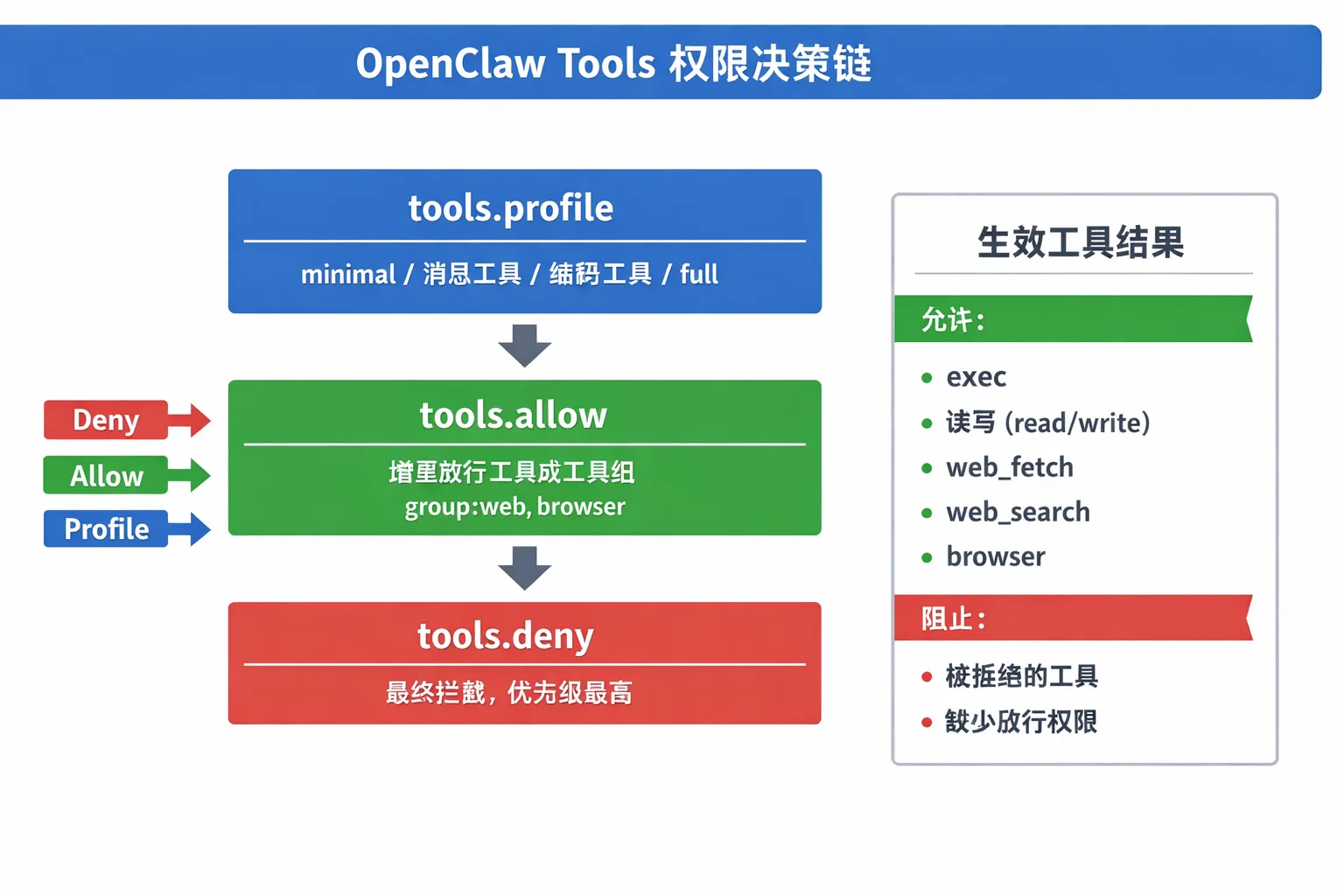
If you only change the profile while ignoring deny or exec.security, tools may still be blocked.
How the Tools permission model works
OpenClaw agents call capabilities through Tools. They do not directly run a raw shell. Common mappings look like this:
- Run commands:
exec - Read and write files:
read/write - Apply patch changes:
apply_patch - Fetch from the web:
web_fetch - Search the web:
web_search - Control the browser:
browser
Permission decisions follow this order:
deny > allow > profile
That means:
profileprovides the baseline capability set.allowgrants additional capabilities on top of that baseline.denyis the final blocklist and has the highest priority.
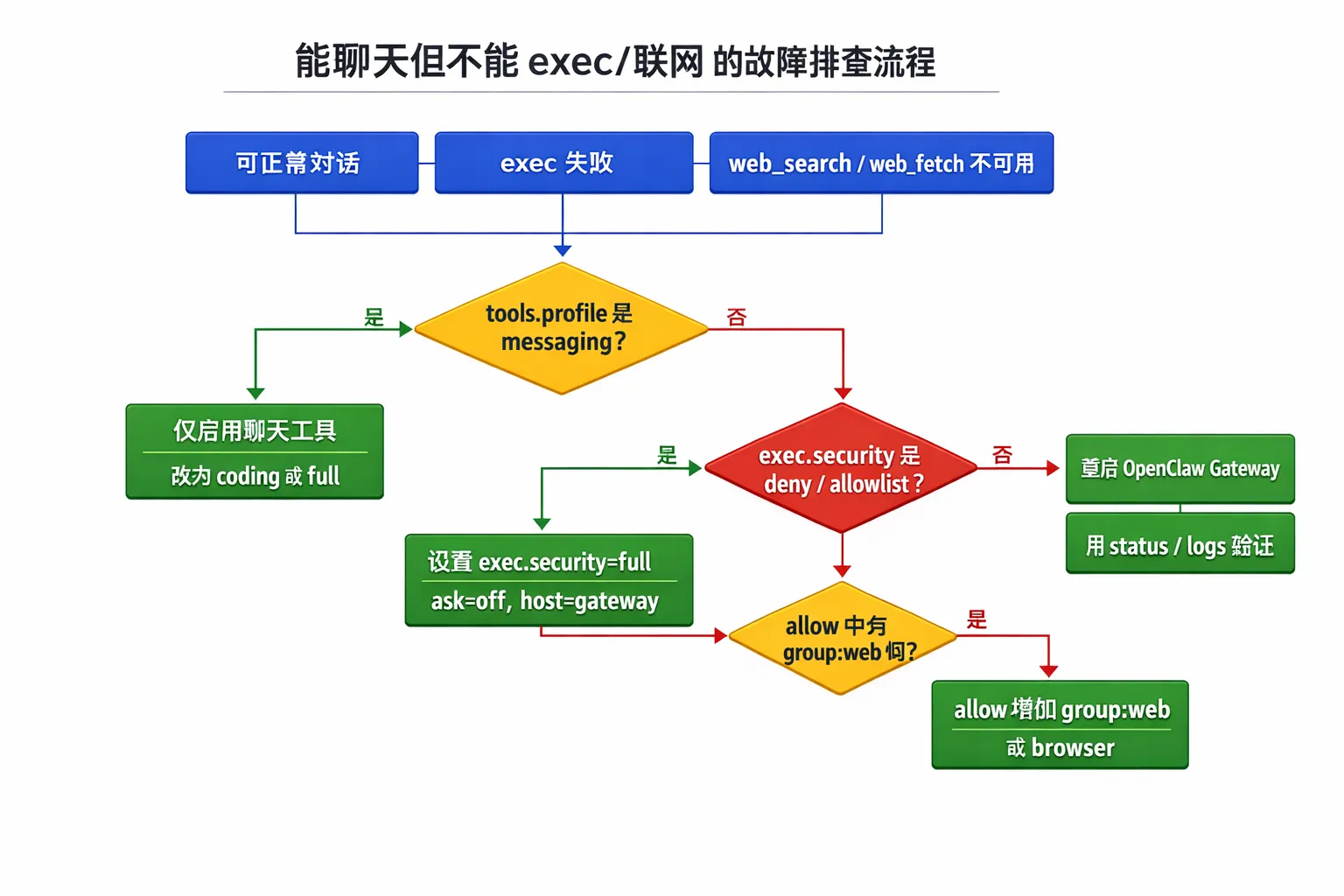
Why you can chat but cannot do anything else
After a new install or upgrade, the default may be tools.profile = "messaging". This configuration keeps only conversation-related tools, so chat works, but execution, file access, web access, and similar capabilities are unavailable.
The second common cause is an overly strict exec policy:
security=deny: execution is disabled outright.security=allowlist, but the command is not on the allowlist: the call is rejected.ask=on-missorask=always: the system waits for approval. If the UI does not show the approval prompt correctly, it can look like the call is stuck.
The third cause is a runtime environment difference. With host=gateway, PATH may be more minimal. If a command cannot be found, it can look like “execution failed” on the surface, while the real issue is that the process environment lacks the command.
Two usable configurations
Option A: minimal usable development config, recommended first
Use this when you need to write code, run commands, and search the web, but do not want to open permissions completely.
{
  "tools": {
    "profile": "coding",
    "allow": ["group:web", "browser"],
    "exec": {
      "host": "gateway",
      "security": "allowlist",
      "ask": "on-miss"
    }
  }
}
For temporary troubleshooting, you can also switch exec.security to full first, then tighten it again after locating the issue.
Option B: local full-permission debugging config
Use this for single-machine debugging and quick validation. I do not recommend using it as the production default.
{
  "tools": {
    "profile": "full",
    "allow": ["*"],
    "exec": {
      "host": "gateway",
      "security": "full",
      "ask": "off"
    }
  }
}
After changing the config, restart OpenClaw:
openclaw gateway restart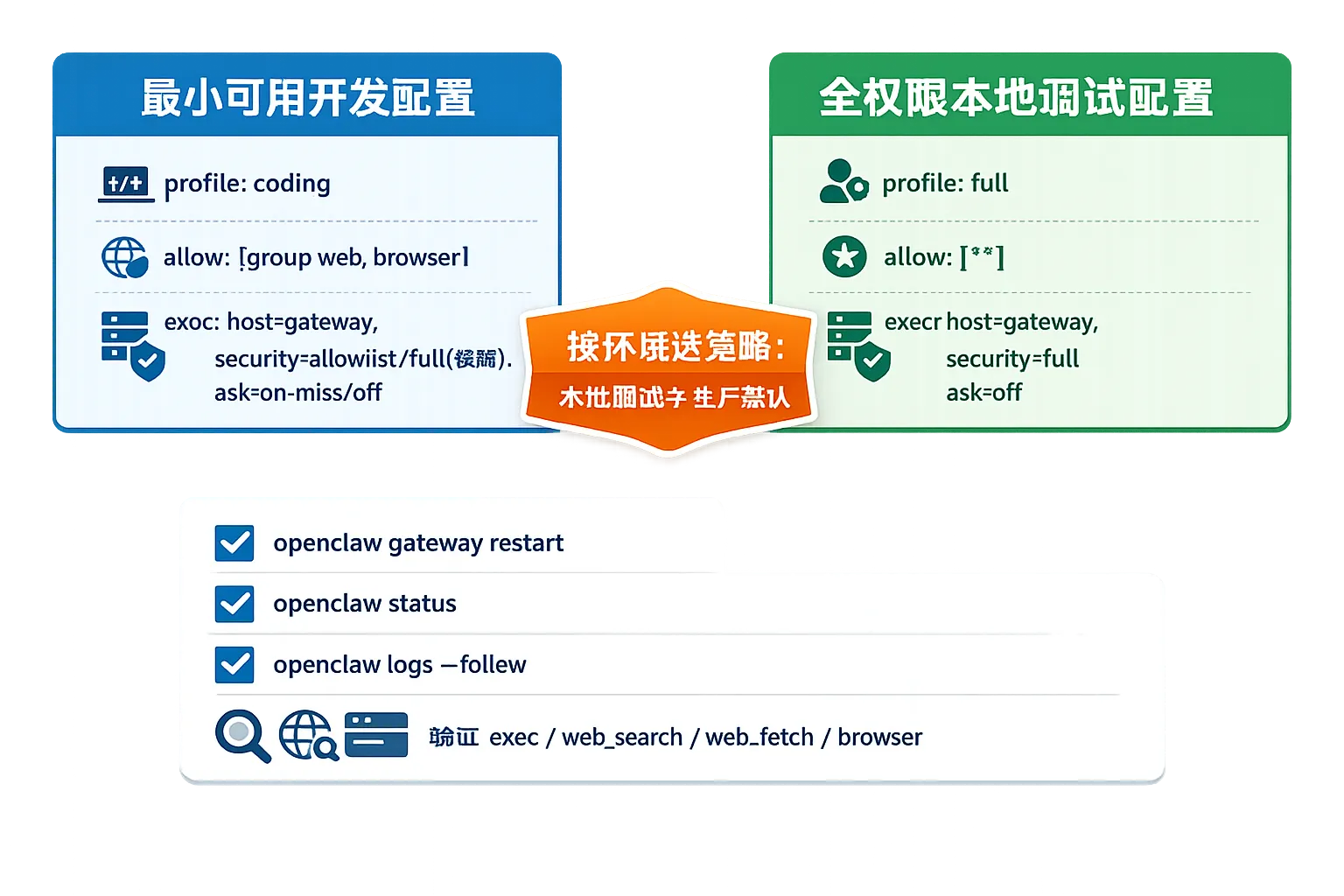
Four-step self-check
- Check whether the config is still using the
messagingprofile. - Confirm that
group:webis allowed; otherwise web search will not work. - Check
exec.securityandaskto avoid hidden approval blocking. - After restarting, use status and logs to verify that the config loaded correctly:
openclaw status
openclaw logs --follow
At minimum, confirm that exec, web_search, web_fetch, and browser are available as expected.
Practical advice
Split Tools configuration into two versions: a development template and a production template. This avoids one-off manual edits during urgent troubleshooting. Teams can codify allowed tool groups, approval policy, restart steps, and verification commands in scripts. After each upgrade, you can quickly return to a known-good state instead of relying on memory for permission details.