Android TextView Internals: Text Measurement and Layout
In Android app development, TextView is one of the most fundamental and most frequently used widgets. We use it every day to display all kinds of text, from simple button labels to complex rich-text paragraphs. But have you ever wondered how TextView turns a string into visible, neatly arranged text inside a limited rectangle? Behind that simple widget is a complex and precise measurement and layout system.
This article walks through TextView internals: how text measurement and layout work, when Android uses key Layout classes such as BoringLayout, StaticLayout, and DynamicLayout, how fonts and typography properties affect the result, how RTL text and emoji are handled, how line breaking works, and what font metrics really mean. The goal is to make TextView behavior easier to reason about when you run into real-world text rendering issues.
1. Opening: The Journey from Characters to Pixels
Imagine setting the text of a TextView to "Hello, Android!". How does that simple string become what the user sees on screen?
At a high level, the process has several stages:
- Character processing: the system receives the string.
- Measurement: TextView calculates how much space it needs, based on the text, font, text size, available width, and other constraints.
- Layout: TextView determines the exact position of every character, or more precisely every glyph, inside its drawing area, including line breaks and alignment.
- Drawing: TextView uses the computed layout information and calls lower-level graphics libraries such as Skia to draw each glyph into screen pixels.
This article focuses on step 2, measurement, and step 3, layout.
2. Android View Rendering and TextView.onMeasure
In Android, every View follows the standard rendering pipeline: Measure -> Layout -> Draw.
- Measure phase: the parent passes a
MeasureSpecto each child. The spec contains a size mode and size. The child computes its desired size from the spec and its own content, then stores the result withsetMeasuredDimension(). - Layout phase: the parent uses each child’s measured size to calculate its exact bounds in the parent coordinate system: left, top, right, and bottom.
- Draw phase: each View draws its content into a Canvas using the position from the Layout phase and the dimensions from the Measure phase.
TextView is a View, so it follows the same flow. Its measurement logic is mainly implemented in onMeasure(int widthMeasureSpec, int heightMeasureSpec).
TextView.onMeasure() is fairly involved. It must account for:
- Text content: text length and character types, such as English letters, CJK characters, emoji, and so on.
- Text attributes: font,
textSize, bold or italic style,lineSpacingExtra,lineSpacingMultiplier, and more. - Layout constraints: the maximum width and height provided by
MeasureSpec. - Padding: values from properties such as
android:padding. - Other limits:
maxLines,minLines,maxWidth,minWidth,maxHeight,minHeight, and related constraints.
The core job of onMeasure() is to calculate the best width and height needed to contain the text. That calculation depends heavily on Android’s internal text layout engine: the Layout class.
// TextView.java (simplified sketch)
@Override
protected void onMeasure(int widthMeasureSpec, int heightMeasureSpec) {
    int widthMode = MeasureSpec.getMode(widthMeasureSpec);
    int heightMode = MeasureSpec.getMode(heightMeasureSpec);
    int widthSize = MeasureSpec.getSize(widthMeasureSpec);
    int heightSize = MeasureSpec.getSize(heightMeasureSpec);

    int width;
    int height;

    // ... many checks and preprocessing steps omitted

    // Key step: create or retrieve a Layout object to compute text dimensions.
    // availableWidth subtracts left and right padding.
    int availableWidth = (widthMode == MeasureSpec.EXACTLY) ? widthSize : Integer.MAX_VALUE;
    availableWidth -= getCompoundPaddingLeft() + getCompoundPaddingRight();

    // Choose the appropriate Layout implementation based on text and width.
    Layout localLayout = makeLayout(availableWidth); // A core method.

    // Compute the required height from the Layout.
    if (heightMode == MeasureSpec.EXACTLY) {
        height = heightSize;
        // A fixed height may require ellipsize handling.
    } else {
        // Use the Layout's actual text height.
        int desiredHeight = getDesiredHeight(localLayout);
        height = desiredHeight;
        if (heightMode == MeasureSpec.AT_MOST) {
            height = Math.min(desiredHeight, heightSize);
        }
    }

    // Compute the required width from the Layout, typically for AT_MOST or UNSPECIFIED.
    if (widthMode == MeasureSpec.EXACTLY) {
        width = widthSize;
    } else {
        // Use the Layout's actual text width.
        int desiredWidth = getDesiredWidth(localLayout);
        width = desiredWidth;
        if (widthMode == MeasureSpec.AT_MOST) {
            width = Math.min(desiredWidth, widthSize);
        }
    }

    // Add padding.
    width += getCompoundPaddingLeft() + getCompoundPaddingRight();
    height += getCompoundPaddingTop() + getCompoundPaddingBottom();

    // ... apply min/max width and height constraints

    // Store the measured result.
    setMeasuredDimension(width, height);
}

// Get the height computed by Layout (simplified).
private int getDesiredHeight(Layout layout) {
    if (layout == null) {
        return 0;
    }
    int lineCount = layout.getLineCount();
    // Account for maxLines and related constraints.
    // ...
    return layout.getHeight(); // Layout directly exposes its height.
}

// Get the width computed by Layout (simplified).
private int getDesiredWidth(Layout layout) {
    if (layout == null) {
        return 0;
    }
    // For multiline text, TextView usually uses the widest line.
    float maxWidth = 0;
    for (int i = 0; i < layout.getLineCount(); i++) {
        maxWidth = Math.max(maxWidth, layout.getLineWidth(i));
    }
    return (int) Math.ceil(maxWidth);
}
This simplified onMeasure() flow shows that TextView delegates the actual text size calculation to a Layout object. The makeLayout() method creates the right Layout implementation for the current situation.
3. The Core Engine: Layout and Its Responsibilities
android.text.Layout is an abstract class and the foundation of Android’s text layout system. It defines the core APIs and behavior required to lay out a formatted CharSequence.
Its main responsibilities are:
- Line breaking: decide where the text should wrap for a given width.
- Glyph positioning: calculate the precise X and Y coordinates for glyphs on each line.
- Size calculation: provide the total width and height of the text block, plus per-line width, height, baseline, and related metrics.
- Text queries: map coordinates to character offsets, and map character offsets back to coordinates.
- Drawing: expose a
draw()method that renders the laid-out text into a Canvas.
In TextView.onDraw(), TextView eventually calls draw() on its Layout object to render the text.
// TextView.java (simplified sketch)
@Override
protected void onDraw(Canvas canvas) {
    super.onDraw(canvas); // Draw background, drawables, and so on.

    // ... save and restore Canvas state, handle offsets, and more

    if (mLayout != null) {
        // Delegate text drawing to the Layout object.
        mLayout.draw(canvas, mHighlightPath, mHighlightPaint, mCursorOffsetVertical);
    }
}
Android provides several concrete Layout implementations for different situations. The most common ones are BoringLayout, StaticLayout, and DynamicLayout.
4. The Three Major Layout Implementations
Inside TextView, makeLayout() tries to choose the most efficient Layout implementation for the current text. The usual selection order is BoringLayout first, then StaticLayout. DynamicLayout is mainly used by EditText.
BoringLayout: A Simple and Fast Single-Line Layout
When it applies:
- The text is single-line.
- The text direction is pure left-to-right (LTR), with no RTL characters or complex bidirectional text.
- The text has no
MetricAffectingSpanthat changes measurement, such asRelativeSizeSpanorStyleSpan. Non-metric spans such asForegroundColorSpanare fine.
Problem it solves:
For simple text that meets those conditions, BoringLayout provides a highly optimized layout path. It avoids complex line-breaking and bidirectional text processing, so measurement and layout are very fast.
How it works:
The factory-style method BoringLayout.isBoring(CharSequence text, TextPaint paint, BoringLayout.Metrics metrics) checks whether the text qualifies as “boring.” If it does, TextView can create a BoringLayout. Internally, the implementation is straightforward: measure the whole line width and store the single-line metrics.
Advantages:
- Excellent performance: minimal calculation overhead.
Limitations:
- Limited capability: only handles very simple single-line LTR text.
Code example, used implicitly:
You usually do not create BoringLayout yourself. When you set simple single-line text on a TextView, the framework can choose it automatically.
<TextView
    android:layout_width="wrap_content"
    android:layout_height="wrap_content"
    android:text="OK"
    android:singleLine="true" />
For the "OK" text above, TextView will likely use BoringLayout internally.
StaticLayout: A Powerful Static Multiline Layout
When it applies:
- The text needs to display across multiple lines.
- The text content is relatively stable and does not change frequently.
- The text needs complex features such as:
- right-to-left (RTL) and bidirectional (BiDi) text;
- spans that change size, style, color, background, or insert images;
- custom line-breaking and hyphenation strategies.
Problem it solves:
StaticLayout is Android’s most common and most capable text layout engine. It handles most complex typography needs, including internationalized text and rich text.
How it works:
When a StaticLayout is created, it performs full text analysis and layout calculation. It:
- uses
TextPaintto measure character or glyph widths; - applies a line-breaking algorithm, usually a greedy strategy, to split text into lines for the given width;
- applies the BiDi algorithm for RTL and mixed-direction text;
- calculates each line’s width, height, ascent/descent, and baseline;
- processes spans in
Spannedtext.
Once a StaticLayout is created, its layout result is immutable. If the text or width changes, a new StaticLayout must be created.
Advantages:
- Feature-rich: supports multiline text, RTL, BiDi, spans, and other complex text behavior.
- Good rendering performance: after layout has been computed,
draw()is relatively cheap because it uses precomputed layout data.
Limitations:
- Creation cost: creating a
StaticLayoutrequires significant computation. Recreating it frequently can be expensive. - Immutable result: not suitable for text that is edited or modified frequently.
Code example, used implicitly:
When TextView text wraps, contains RTL characters, or has complex spans, the framework automatically uses StaticLayout.
<TextView
android:layout_width="match_parent"
android:layout_height="wrap_content"
android:text="This is a longer text that will likely wrap into multiple lines. It supports different styles like <b>bold</b> and <i>italic</i>, as well as RTL text like שלום (Shalom)." />Code example, explicit creation:
TextView normally handles this for you, but you can create a StaticLayout manually when drawing text in a custom View.
import android.text.Layout;
import android.text.StaticLayout;
import android.text.TextPaint;
import android.graphics.Canvas;

// Inside a custom View's onDraw.
@Override
protected void onDraw(Canvas canvas) {
    super.onDraw(canvas);

    String myText = "Manually creating a StaticLayout example.";
    TextPaint textPaint = new TextPaint();
    textPaint.setAntiAlias(true);
    textPaint.setTextSize(50); // 50px
    textPaint.setColor(Color.BLACK);

    int availableWidth = getWidth() - getPaddingLeft() - getPaddingRight();

    // On Android Q (API 29) and later, StaticLayout.Builder is recommended.
    StaticLayout.Builder builder = StaticLayout.Builder.obtain(myText, 0, myText.length(), textPaint, availableWidth)
            .setAlignment(Layout.Alignment.ALIGN_NORMAL)
            .setLineSpacing(0f, 1.0f) // lineSpacingExtra, lineSpacingMultiplier
            .setIncludePad(true); // Corresponds to includeFontPadding.

    // Set additional properties as needed.
    // builder.setBreakStrategy(Layout.BREAK_STRATEGY_HIGH_QUALITY);
    // builder.setHyphenationFrequency(Layout.HYPHENATION_FREQUENCY_NORMAL);

    StaticLayout staticLayout = builder.build();

    canvas.save();
    // Move the drawing origin to the top-left corner inside padding.
    canvas.translate(getPaddingLeft(), getPaddingTop());
    staticLayout.draw(canvas);
    canvas.restore();
}
DynamicLayout: A Responsive Layout for Editable Text
When it applies:
- The text changes or is edited frequently, such as text inside an EditText.
Problem it solves:
EditText lets users type, delete, and modify text in real time. If every change recreated a full StaticLayout, the cost would be high and typing could become janky. DynamicLayout improves editing performance by incrementally updating layout data instead of recomputing everything from scratch.
How it works:
DynamicLayout extends Layout. Its core idea is to maintain internal data structures, such as text blocks and line information. When text changes, it recalculates only the affected portion, typically the line containing the edit and later lines that may be impacted, rather than the entire text. It also listens to changes in Editable text.
Advantages:
- Good editing performance: layout updates are efficient when text changes.
- Full functionality: supports most
StaticLayoutfeatures, including multiline text, RTL, and spans.
Limitations:
- Initial creation and drawing can be slightly slower: its internal structure is more complex than
StaticLayout, so one-time setup and drawing may cost a bit more. - Memory usage may be higher: it keeps extra data structures to support dynamic updates.
Code example, mainly used internally by EditText:
You almost never need to create DynamicLayout by hand. When you use EditText, it uses DynamicLayout internally for text layout.
<EditText
    android:id="@+id/editText"
    android:layout_width="match_parent"
    android:layout_height="wrap_content"
    android:hint="Enter text here" />
When the user types in this EditText, DynamicLayout works behind the scenes to update the text layout efficiently.
Comparison: Which Layout Is Used When?
| Feature | BoringLayout | StaticLayout | DynamicLayout |
|---|---|---|---|
| Main use case | Simple single-line LTR text | Complex static multiline text | Editable text, especially EditText |
| Line count | Single line | Single or multiple lines | Single or multiple lines |
| Text direction | LTR only | LTR, RTL, and BiDi | LTR, RTL, and BiDi |
| Spans | Non-metric spans only | All span types | All span types |
| Mutability | Immutable | Immutable | Mutable, with incremental updates |
| Creation performance | Very fast | Slower, full calculation required | Slower, slightly more complex than StaticLayout |
| Update performance | N/A, immutable | N/A, recreate required | Fast incremental updates |
| Widget usage | TextView, selected automatically | TextView, selected automatically | EditText, used internally |
| Primary problem solved | Optimize simple text layout | Lay out complex static text | Optimize editable text layout |
Selection strategy:
- For TextView:
- If the text is simple, single-line, and pure LTR, the system automatically chooses
BoringLayoutfor best performance. - If the text is multiline, contains RTL/BiDi characters, or uses complex spans, the system automatically chooses
StaticLayout.
- If the text is simple, single-line, and pure LTR, the system automatically chooses
- For EditText:
- The system uses
DynamicLayoutto keep editing smooth.
- The system uses
Developers usually do not need to explicitly choose or create these Layout classes unless they are building a custom View or doing targeted performance work. Understanding the differences helps when you need to reason about TextView and EditText behavior.
5. Line Breaking, Hyphenation, and Alignment
One of the core capabilities of StaticLayout and DynamicLayout is handling line breaks.
A Quick Look at Line-Breaking Algorithms
The simplest line-breaking algorithm is the greedy algorithm:
- Start at the beginning of the current line and fit as many words as possible, usually split by spaces or punctuation.
- Stop when the next word no longer fits within the available width.
- Finalize the current line, then continue with the next word on the next line.
The greedy algorithm is simple and fast, and many text layout systems are built on top of it. But it does not always produce the best typography. One line may look too empty, or the last line may contain only a very short word. More advanced algorithms, such as the Knuth-Plass algorithm used by TeX, consider line breaks across the whole paragraph to produce more balanced and visually pleasing results, but they are more computationally expensive. Android’s StaticLayout is mainly based on a greedy strategy, with configurable options to improve quality.
Android Line-Breaking Strategy: android:breakStrategy
Android provides the android:breakStrategy attribute on API 23 and later. It lets developers tune line-breaking behavior and balance typography quality against performance.
- simple: the default on API 23-27. This is a basic, fast strategy, but it may not break CJK text or punctuation-heavy text as nicely.
- high_quality: the default on API 28 and later. It provides higher-quality line breaks, especially around punctuation and CJK characters, and is generally recommended. It does more work to find better break points.
- balanced: tries to keep line lengths as even as possible for a more balanced visual result. This usually costs more computation and is most appropriate for titles or short text blocks.
<TextView
    android:layout_width="200dp"
    android:layout_height="wrap_content"
    android:text="This text demonstrates different break strategies. High quality is often preferred."
    android:breakStrategy="high_quality" />
Hyphenation: android:hyphenationFrequency
For Western languages, when a long word does not fit at the end of a line, the layout engine can split it with a hyphen (-) and continue it on the next line. Android controls this behavior with android:hyphenationFrequency on API 23 and later.
- none: do not hyphenate. If a word does not fit, move the entire word to the next line.
- normal: the default. Apply moderate hyphenation, balancing readability and space usage.
- full: apply more aggressive hyphenation to maximize space usage and produce a cleaner text edge.
<TextView
    android:layout_width="150dp"
    android:layout_height="wrap_content"
    android:text="Demonstrating hyphenation for long words like 'internationalization'."
    android:breakStrategy="high_quality"
    android:hyphenationFrequency="normal" />
Enabling normal or full hyphenation often improves Western text layout at narrow widths, but it can slightly increase layout time because the engine needs to consult hyphenation dictionaries.
Note: hyphenation requires the device to support hyphenation rules for the relevant language.
Alignment: android:gravity or Layout.Alignment
Text alignment inside a TextView is controlled by gravity for horizontal alignment, or by Layout.Alignment when creating a Layout manually.
Gravity.LEFT/Alignment.ALIGN_NORMAL: left-aligned in the default LTR context.Gravity.RIGHT/Alignment.ALIGN_OPPOSITE: right-aligned in the default RTL context.Gravity.CENTER_HORIZONTAL/Alignment.ALIGN_CENTER: centered horizontally.
TextView converts gravity into the corresponding Layout.Alignment and passes it to the Layout object.
6. Font Metrics and Vertical Spacing
Text is not only laid out horizontally. Vertical spacing matters just as much. Understanding font metrics is key to understanding line height and vertical alignment.
Understanding Paint.FontMetrics
android.graphics.Paint.FontMetrics provides vertical metrics for a specific font and text size. You can obtain it with paint.getFontMetrics().
- baseline: not a field on
FontMetrics, but the baseline used to draw text. All other metrics are relative to it. Think of the line where the lowercase English letterxsits. - ascent: the recommended distance from the baseline to the top of typical Western characters, usually a negative value. It accounts for most characters such as
handl, but may not include the highest accents or special characters. - descent: the recommended distance from the baseline to the bottom of typical Western characters, usually a positive value. It accounts for descenders such as
g,p, andy. - top: the distance from the baseline to the highest pixel the font might draw, also negative, and
top <= ascent. It includes all possible marks or glyphs, including rare very tall ones. - bottom: the distance from the baseline to the lowest pixel the font might draw, positive, and
bottom >= descent. It includes all marks or glyphs that may extend below the baseline. - leading: the suggested extra space between the previous line’s descent and the next line’s ascent. This value is often 0.
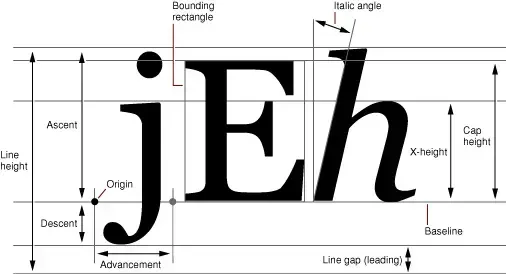
Illustration: a horizontal line represents the baseline. Above the baseline are ascent and top, both negative. Below it are descent and bottom, both positive. The letters jEh demonstrate that the top of h is close to ascent and the bottom of j is close to descent. A very tall accented glyph may reach top, and a very low mark may reach bottom. Leading appears between two lines of text.
Line Height Calculation: Default Behavior
By default, with includeFontPadding=true and elegantTextHeight=false, the basic height of a line in TextView is roughly determined by descent - ascent. In practice, the calculation is more nuanced so it can accommodate all possible glyphs, including the range covered by top and bottom, and keep spacing consistent across multiple lines.
What includeFontPadding Does: android:includeFontPadding
This property, true by default, controls whether TextView includes extra space above ascent and below descent as defined by top and bottom.
- includeFontPadding=“true”, the default:
- the first line’s top includes the extra space from
top - ascent; - the last line’s bottom includes the extra space from
bottom - descent; - line spacing accounts for bottom and top, avoiding overlap even with very tall or very low glyphs;
- advantage: accommodates all glyphs and avoids clipping in edge cases;
- drawback: text may appear to have too much vertical padding, especially at the top and bottom, making precise visual alignment with other UI elements harder.
- the first line’s top includes the extra space from
- includeFontPadding=“false”:
- line height is mainly based on ascent and descent;
- the first line’s top sits close to ascent, and the last line’s bottom sits close to descent;
- line spacing is also mainly based on ascent and descent;
- advantage: the text bounds are closer to the visible glyphs, which makes pixel-level alignment with other elements easier;
- drawback: if a font contains very tall or very low glyphs outside the ascent/descent range, those parts may be clipped.
Recommendation: if you need precise vertical alignment or the default top and bottom spacing looks too large, try android:includeFontPadding="false". Test on multiple devices and fonts to make sure important glyphs are not clipped.
<LinearLayout
    android:layout_width="match_parent"
    android:layout_height="wrap_content"
    android:orientation="horizontal"
    android:background="#DDDDDD">

    <ImageView
        android:layout_width="48dp"
        android:layout_height="48dp"
        android:src="@drawable/ic_launcher_foreground"
        android:background="#AAAAAA"/>

    <TextView
        android:layout_width="wrap_content"
        android:layout_height="48dp"
        android:text="Align Me (Padding True)"
        android:textSize="20sp"
        android:gravity="center_vertical"
        android:includeFontPadding="true"
        android:background="#EEEEEE"/>

    <TextView
        android:layout_width="wrap_content"
        android:layout_height="48dp"
        android:text="Align Me (Padding False)"
        android:textSize="20sp"
        android:gravity="center_vertical"
        android:includeFontPadding="false"
        android:background="#DDDDDD"/>

</LinearLayout>
Run the example above with both TextViews using the same height and center_vertical. You will see that the baseline of the TextView with includeFontPadding="false" appears different from the one with includeFontPadding="true". The latter often looks slightly lower because of the extra font padding.
elegantTextHeight: Pursuing a More Refined Vertical Rhythm
This property, available on API 21 and later and false by default, provides another way to calculate line height. It aims for a more consistent and refined vertical rhythm, especially when text mixes scripts such as Latin, Devanagari, and Thai, or contains complex combining marks.
- elegantTextHeight=“false”, the default: mainly uses ascent/descent as the baseline, and adds extra space through
includeFontPaddingwhen that property is true. - elegantTextHeight=“true”:
- tends to use font metrics intended for “elegant” typography if the font supports them, or falls back to using top/bottom as the main basis for line height;
- aims to provide more consistent line heights and baselines across languages and scripts, even when their ascent/descent values differ significantly;
- usually increases line height, because it needs to accommodate the maximum vertical range of different scripts;
- implies behavior similar to
includeFontPadding="true"by always accounting for top and bottom.
When to use it:
- when you mix multiple scripts and want more harmonious line height and baseline alignment;
- when your font explicitly supports elegant-height metrics;
- when default line height looks inconsistent for certain languages or special characters.
Note: enabling elegantTextHeight can change the overall vertical size of the text, so test the layout impact carefully. It is not universally “better”; it depends on your design requirements and fonts.
<TextView
    android:layout_width="match_parent"
    android:layout_height="wrap_content"
    android:text="Text with default height.\nअगला पाठ (Hindi)"
    android:textSize="24sp" />

<TextView
    android:layout_width="match_parent"
    android:layout_height="wrap_content"
    android:text="Text with elegant height.\nअगला पाठ (Hindi)"
    android:textSize="24sp"
    android:elegantTextHeight="true"
    android:layout_marginTop="16dp"/>
Compare the two TextViews above. After enabling elegantTextHeight, you may notice a change in the vertical spacing between the English and Hindi lines, and in the overall height. The change usually helps accommodate the height of Hindi characters more comfortably.
7. Handling Complex Text Scenarios
Modern apps often need to handle text that is more complex than simple LTR strings.
RTL Text Layout
Android provides robust support for RTL languages such as Arabic and Hebrew.
- Automatic detection: TextView and Layout can detect whether text contains RTL characters.
- BiDi algorithm: when text mixes LTR and RTL characters, such as Arabic embedded inside English, the system applies the Unicode bidirectional algorithm to determine the correct visual order and direction of each text run.
StaticLayoutandDynamicLayoutimplement BiDi handling internally. - android:textDirection: you can explicitly control the base text direction of a TextView, commonly with values such as
locale,ltr,rtl, andinherit. For Layout, this affects howAlignment.ALIGN_NORMALandAlignment.ALIGN_OPPOSITEbehave. For example,ALIGN_NORMALis right-aligned in an RTL context.

Illustration: a TextView contains mixed English and Arabic text, for example "This is an example with العربية text." The English runs should display left to right, the Arabic run should display right to left, and the overall sentence should follow the correct BiDi ordering.
The BiDi process is usually transparent to developers. The Layout class calculates the correct glyph order and positions.
Emoji and Special Characters
- Emoji are Unicode characters. Modern Android versions and fonts generally support them out of the box.
- Measurement: emoji are often wider than ordinary characters, sometimes around twice as wide. Layout accounts for their width during measurement and wrapping.
- Rendering: the system renders emoji with color fonts such as Noto Color Emoji.
- Line breaking: emoji are usually treated as a unit and are not split in the middle.
- Complex scripts require glyph composition and shaping, such as connected Arabic letters or vowel marks in Hindi. Android uses the HarfBuzz engine for this. The process happens before Layout calculation: text is shaped into the correct glyph sequence and positions, and then Layout performs line breaking and positioning based on those glyphs.
Developers usually do not need to intervene directly in emoji or complex-script handling. Use modern Android versions and fonts that support the scripts you need.
Rich Text with Spanned Strings
TextView supports rich text through the Spanned interface, including different styles, colors, clickable links, and more. During layout calculation, Layout recognizes and handles the spans inside Spanned text:
- MetricAffectingSpan: examples include
StyleSpanfor bold or italic text,RelativeSizeSpan, andTextAppearanceSpan. These spans change text metrics, such as width or height, so Layout must account for them during measurement and line breaking.BoringLayoutdoes not support these spans. - CharacterStyle, non-metric spans: examples include
ForegroundColorSpan,BackgroundColorSpan, andUnderlineSpan. They affect drawing but do not change text metrics, so Layout mainly applies them during drawing. - ParagraphStyle: examples include
AlignmentSpan,LineBackgroundSpan, andBulletSpan. These spans affect whole lines or paragraphs during layout or drawing.
StaticLayout and DynamicLayout handle all span types correctly.
SpannableString spannable = new SpannableString("This text has bold, colored, and clickable parts.");

// Bold
spannable.setSpan(new StyleSpan(Typeface.BOLD), 15, 19, Spanned.SPAN_EXCLUSIVE_EXCLUSIVE);
// Color
spannable.setSpan(new ForegroundColorSpan(Color.RED), 21, 28, Spanned.SPAN_EXCLUSIVE_EXCLUSIVE);
// Clickable
ClickableSpan clickableSpan = new ClickableSpan() {
    @Override
    public void onClick(@NonNull View widget) {
        Toast.makeText(widget.getContext(), "Clicked!", Toast.LENGTH_SHORT).show();
    }
    @Override
    public void updateDrawState(@NonNull TextPaint ds) {
        super.updateDrawState(ds);
        ds.setUnderlineText(true); // Make the clickable part underlined.
        ds.setColor(Color.BLUE); // Make the clickable part blue.
    }
};
spannable.setSpan(clickableSpan, 34, 43, Spanned.SPAN_EXCLUSIVE_EXCLUSIVE);

TextView textView = findViewById(R.id.myTextView);
textView.setText(spannable);
// Important: set a MovementMethod so ClickableSpan can respond to taps.
textView.setMovementMethod(LinkMovementMethod.getInstance());
Layout parses these spans so bold text occupies the correct width, colored text uses the right paint during drawing, and ClickableSpan has position information for touch handling.
8. Performance Considerations and Optimization Tips
TextView is powerful, but performance can become a bottleneck when handling large amounts of text or frequent updates.
- Avoid creating Layout or Paint objects inside onDraw: object creation has a cost. Create or update them during initialization or when text and properties change, then reuse them in
onDraw. TextView already follows this principle internally. - StaticLayout vs DynamicLayout:
- For text that rarely changes,
StaticLayoutrenders efficiently after creation. - For editable text, EditText must use
DynamicLayout. - If a TextView’s content changes frequently but is not editable, each update may recreate a
StaticLayout, which can be expensive. Consider alternatives such as splitting long text in a RecyclerView, or updating only changed parts when feasible.
- For text that rarely changes,
- Cache Layout objects: if you manually create Layout instances in a custom View, and both the text and constraints are unchanged, cache the Layout to avoid repeated calculation.
- TextView-specific optimizations:
- Reduce unnecessary
setText()calls: only call it when the text actually changes. - Avoid excessive complex spans in lists: many complex spans increase layout and drawing cost.
- Consider
PrecomputedTexton API 28+: for long text that can be prepared on a background thread,PrecomputedTextcan perform much of the text measurement work off the main thread, then set the result on TextView to reduce UI jank.
- Reduce unnecessary
// On a background thread.
TextView textView = findViewById(R.id.myTextView);
CharSequence longText = ... ;
PrecomputedText.Params params = textView.getTextMetricsParams();
Spannable newText = PrecomputedText.create(longText, params);

// Back on the main thread.
textView.setText(newText);- Simplify surrounding layout: overly complex ConstraintLayout structures or deeply nested layouts increase overall measure/layout time and can indirectly affect TextView rendering performance.
9. Debugging Tips
When TextView does not render as expected, try the following:
- Layout Inspector: Android Studio’s Layout Inspector can show TextView bounds, padding, measured width and height, and text content.
- Check properties: review XML attributes and code settings such as
textSize,textColor,lineSpacingExtra,includeFontPadding,breakStrategy,maxLines, andellipsize. - Print FontMetrics: retrieve the TextView’s
TextPaintand print its font metrics to understand current vertical metrics and baseline positioning.
TextPaint paint = textView.getPaint();
Paint.FontMetrics fm = paint.getFontMetrics();
Log.d("FontMetrics", "top: " + fm.top + ", ascent: " + fm.ascent +
                   ", descent: " + fm.descent + ", bottom: " + fm.bottom +
", leading: " + fm.leading);- Simplify the scenario: try simpler text, remove spans, use a standard font, and remove line spacing. Add factors back one by one to identify the cause.
- Visualize bounds: temporarily give TextView a strong background color, or enable “Show layout bounds” in Developer Options, to see the area it actually occupies.
10. Summary: The Essence of TextView Layout
TextView measurement and layout is a precise process shaped by many factors. Understanding the underlying mechanism, especially the roles and differences of BoringLayout, StaticLayout, and DynamicLayout, plus the influence of font metrics on vertical spacing, is essential for building high-quality, high-performance Android UI.
Key takeaways:
TextView.onMeasure()relies on a Layout object to calculate size.BoringLayoutoptimizes simple single-line LTR text.StaticLayoutis the workhorse for complex static multiline text. It is feature-rich but has a creation cost.DynamicLayoutis used by EditText and supports efficient incremental updates.breakStrategyandhyphenationFrequencyaffect the appearance of text flow.- Font metrics, including
top,ascent,descent, andbottom, determine vertical space. includeFontPaddingandelegantTextHeightcontrol how TextView uses font metrics for line height and spacing, which affects vertical alignment.- Android automatically handles RTL/BiDi text, emoji, and complex scripts.
Spannedtext enables rich text display, and Layout is responsible for processing it.- Performance optimization should focus on Layout choice, caching, and avoiding unnecessary computation.
After digging through these details, TextView measurement and layout should feel less mysterious. The next time you tune lineSpacingMultiplier, handle multilingual alignment, or optimize list scrolling performance, you will have a clearer model of what TextView is doing under the hood.